replacing tmux splits with shell job control in zsh
The more comfortable I get in tmux and the terminal the more averse I become to having more than two windows, and especially more than two panes in a window. At some point we’ve all been in this situation:
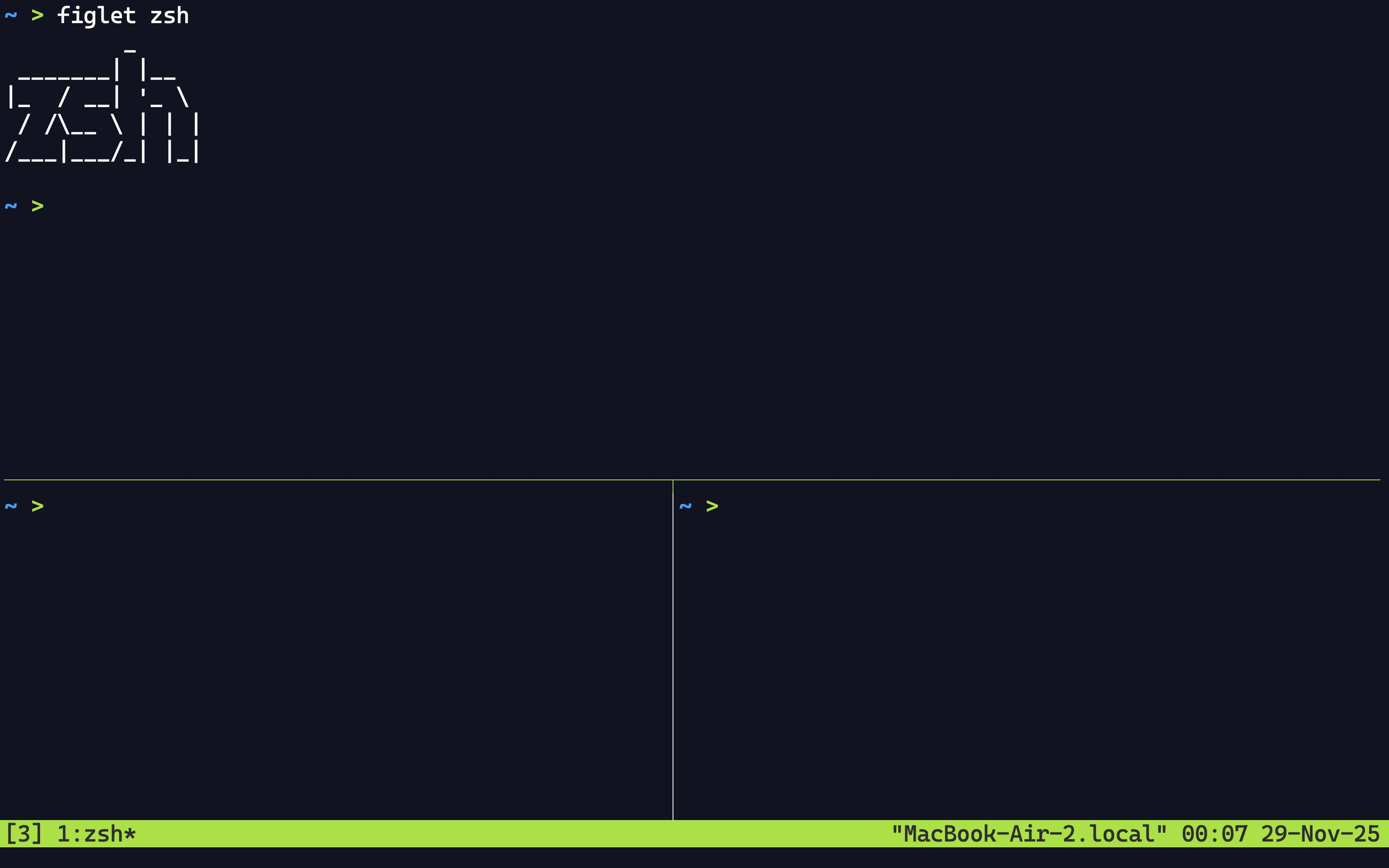
Maybe in the top split you’re running vim, bottom-right has some kind of server process, and bottom-left is an open terminal for running commands. It’s annoying that when the top pane is focused the cursor’s behaviour when navigating down a pane isn’t immediately obvious.
Shell job control
The concept of job control has been a feature of Unix shells for decades. In the same way you can press Ctrl-C in the shell to terminate the current process with SIGINT, Ctrl-Z will suspend the current process by sending a SIGTSTP signal. Try it by running some process – say man ls. By entering Ctrl-Z you’ll exit the open man pager process, but unlike Ctrl-C the process is only suspended. You can bring it back to the foreground by entering fg, or resume it in the background with bg (when that’s relevant).
Try it out yourself by opening man pages on a couple programs (say ls and grep), then typing Ctrl-Z when inside them. If you do that and then run jobs in the terminal, you should get the following output:
[1]  - suspended  man ls
[2]  + suspended  man grep
You can resume any of these with fg %<number>. The + and - stand for the current and previous shell jobs, and you can foreground those with fg %+ and fg %- as well.
ZLE and custom widgets
ZLE stands for Zsh Line Editor. Modern shells come with a line editor component which allows the modification of text on the command line. The bash equivalent to ZLE would be readline. Without a line editor, features in the shell like completions, cursor movement, history search, etc. wouldn’t be available. Text input would go directly to the shell’s prompt as raw text.
ZLE allows line editing with “widgets”. Widgets are just shell functions that take some action on the command line. There are a set of standard widgets (see the Standard Widgets sections in man zshzle), and some come mapped to a set of default keybinds. For example, Ctrl-B is mapped to backward-char moving the cursor back one character. There are a different set of maps when using the shell in the non-default vi mode, but we won’t cover that here. You can view all the current keybinds by running bindkey.
The feature we’ll use offered by ZLE but not included in readline is user-defined widgets. ZLE allows assigning any shell function to a widget with zle -N. We can then bind that widget to a mapping using bindkey <mapping> <widget>.
Job control mappings
Now we have the tools we need to really make switching between suspended processes convenient. We’ll add the following mappings which allow us to view, kill, and switch between jobs easily:
| Map | Shell command |
|---|---|
^J^J |
jobs |
^J^M |
fg %+ |
^J^N |
fg %- |
^J<num> |
fg %<num> |
^J^K<num> |
kill %<num> |
I like ^J as a prefix because its default is redundant, as ^M does the exact same thing.
To add these, in our .zshrc we need to define the function and widget, then assign the widget to the keybind. For the view jobs widget:
jobs_widget() { echo ""; jobs; zle reset-prompt; }
zle -N jobs_widget
bindkey '^J^J' jobs_widget
We define the function, add it as a widget, and bind the widget to a keymap. echo "" and zle reset-prompt in the function definition are optional and just for display purposes.
All other maps are for foregrounding or killing the job by its number. For the current job we can do:
fg_current_widget() { zle -I; fg %+; }
kill_job_current_widget() { kill %+ && fg %+; }
zle -N fg_current_widget
zle -N kill_job_current_widget
bindkey '^J^M' fg_current_widget
bindkey '^J^K^M' kill_job_current_widget
…or whatever keymaps you’d like. You can repeat for previous job (-) as well.
Note: we run
zle -Ibefore callingfgin our foregrounding widget because I found some strange behaviour where^Zwasn’t recognized if I opened some file with less, suspended it, and then resumed it again. Apparently when using custom widgets the terminal state can become out of sync with the underlying shell state if zsh doesn’t detect it needs a refresh.zle -Iessentially just forces a redraw.
Lastly we can define fg and kill commands for job indexes 1-9. Unfortunately I wasn’t aware of a clean way to dynamically define these widget names, so I just went with a few evals in a loop to keep things DRY:
for i in {1..9}; do
    eval "fg_${i}_widget() { zle -I; fg %${i}; }"
    eval "kill_job_${i}_widget() { kill %${i} && fg %${i}; }"
    eval "zle -N fg_${i}_widget"
    eval "zle -N kill_job_${i}_widget"
    eval "bindkey '^J${i}' fg_${i}_widget"
    eval "bindkey '^J^K${i}' kill_job_${i}_widget"
done
Hacky but it does the trick.
Conclusion
Adding these maps has drastically cut down on my usage of splits, and I find it a much smoother workflow. The maps for fg %+ and fg %- are particularly handy. I still love using tmux for all the other features it provides – and sometimes you really do need a second terminal – but it’s nice using native shell features when possible.